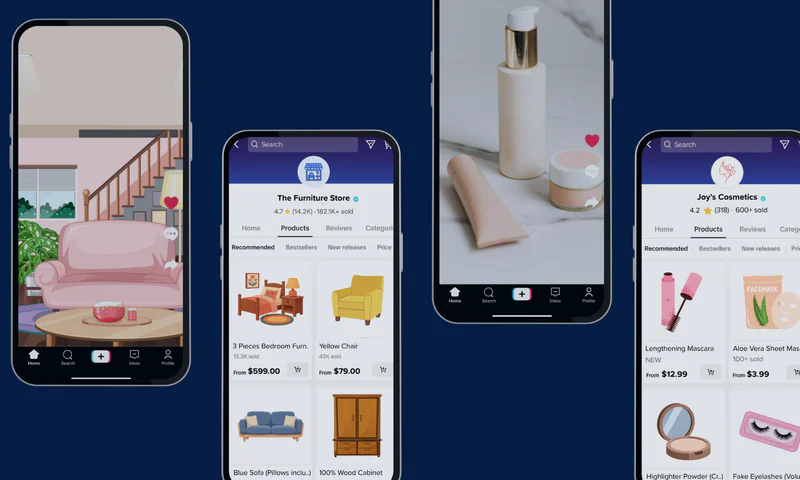


Learn how to connect TikTok Shop with GetReviews in this step-by-step tutorial! 🚀
In this video, we’ll walk you through the setup process so you can easily integrate TikTok Shop with GetReviews and start collecting, managing, and syncing customer reviews more efficiently.
✨ Key Features
Automatic Review Sync — Keep your product pages updated with the latest customer feedback without manual uploads.
Build Trust with Authentic Reviews — Display verified reviews to increase shopper confidence and credibility.
Easy Setup & Seamless Integration — Connect GetReviews in minutes and automate your review collection.
Whether you're new to TikTok Shop or looking to improve your existing review strategy, this guide will help you get your integration up and running.
How to Set Up TikTok Integration with GetReviews
Log in to your GetReviews account and access your dashboard. On the left-hand side, under Setup > select Marketplaces.

Click Add Marketplaces > Find TikTok Shop > click Configure > and enable TikTok Shop

Click Connect TikTok Shop.

You will be redirected to your TikTok Shop Seller account > select the Seller account you want to connect, and authorize GetReviews.

After authorization, you will automatically be returned to GetReviews, and the connection status will be shown as Connected. Click Save.

On the left-hand side under Setup > select Products. Select your desired product and click Edit. Enable TikTok Shop, enter the TikTok Product ID, and save the product.
The TikTok Product ID can be found in your TikTok Seller Center under Products > Manage Products.
No additional integration setup is required. GetReviews automatically syndicates reviews after the shop is connected. You can verify it by going to Setup > Integrations. TikTok Shop should be shown as enabled.
How It Works
Complete a GetReviews survey for the connected product and select TikTok Shop as the purchase location. The customer submits the review directly through GetReviews. They do not need to copy and paste it into TikTok Shop.
If review dispatch is configured as After Validation, approve the review in Validation Center. Automatically validated orders require no manual action.
To verify the imported review, open TikTok Seller Center and go to Products on the left hand side > select Product Ratings.
Click the Imported reviews tab
Click View reviews
